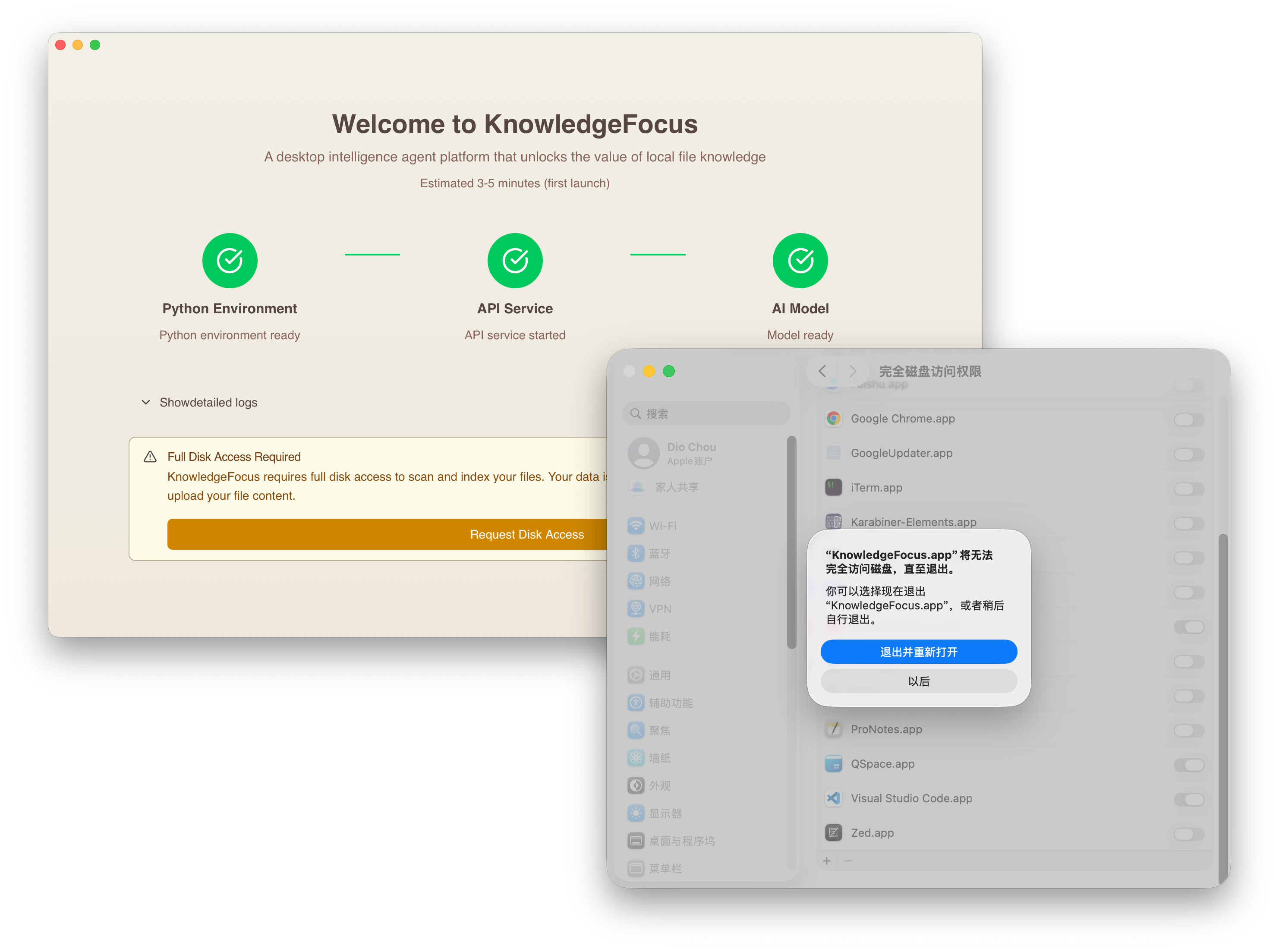
Startup Process
To provide a smooth user experience, we handle all complex runtime environment requirements during the startup phase.
The startup process consists of four steps
1. Automatic Creation of the Python Runtime Environment
a) Normal Situation
- On first launch, downloading the required runtime libraries will take some time. You can view detailed progress in the data observation window.
- On subsequent launches, the runtime environment will be checked and updated, which takes much less time.
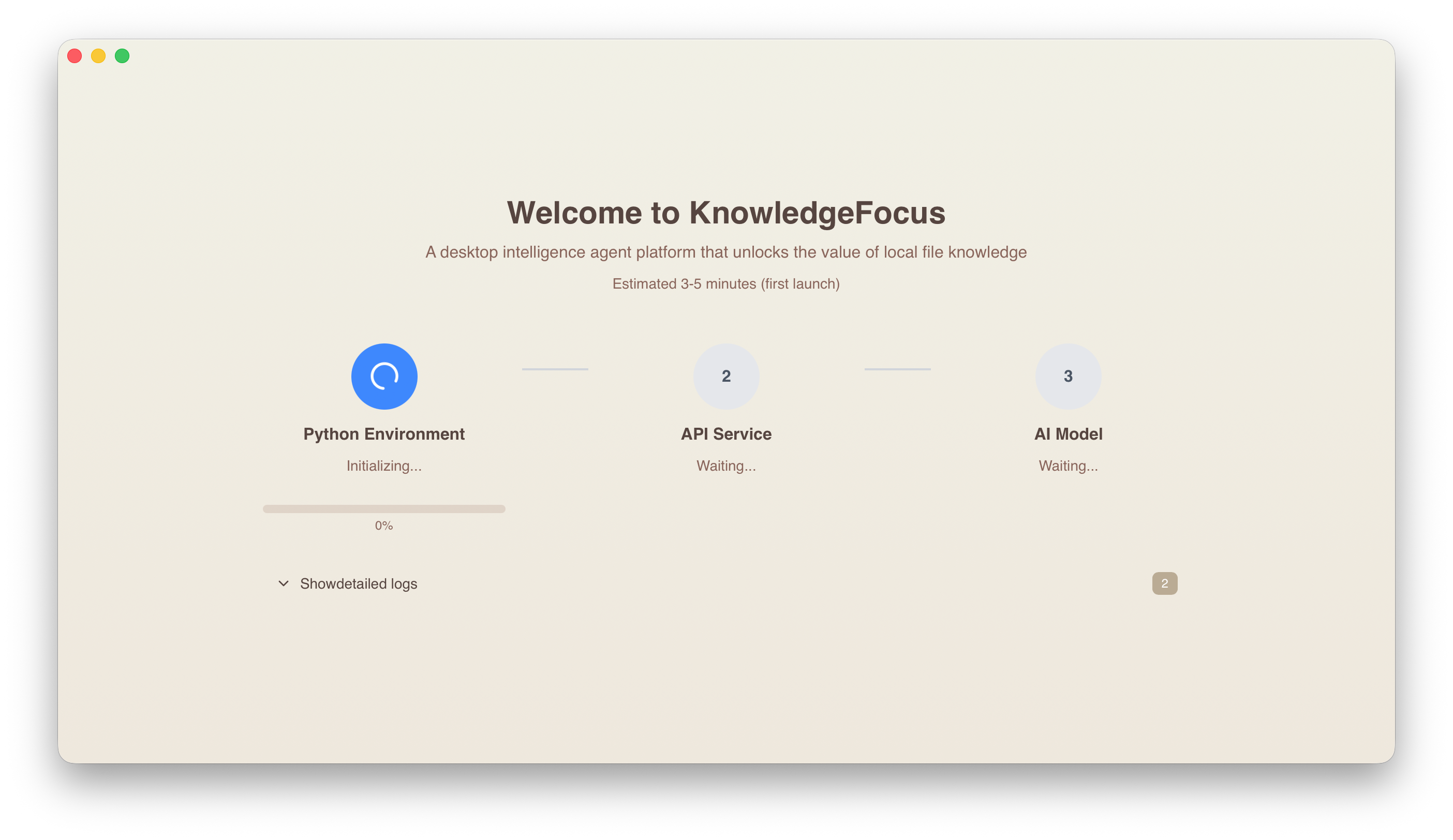
b) Troubleshooting
If you notice no progress changes or download failures in the observation window for an extended period, you may be unable to access pypi.python.org directly. Try downloading from a mirror site using the following method:
Open the Terminal app, copy and paste the following two commands one by one, then press Enter to execute:
cp -f /Applications/KnowledgeFocus.app/Contents/Resources/api/pyproject.toml ~/Library/Application\ Support/knowledge-focus.huozhong.in/
UV_DEFAULT_INDEX="https://pypi.tuna.tsinghua.edu.cn/simple" /Applications/KnowledgeFocus.app/Contents/MacOS/uv sync --index-strategy unsafe-best-match --directory ~/Library/Application\ Support/knowledge-focus.huozhong.in/
You can replace the mirror URL with another PyPI mirror site if needed.
- After successful execution, completely quit KnowledgeFocus and restart it.
2. Start the Python Data Interface Server
- The first launch requires compiling code into a runtime cache, which takes longer. Please be patient.
- Subsequent launches will be much faster.
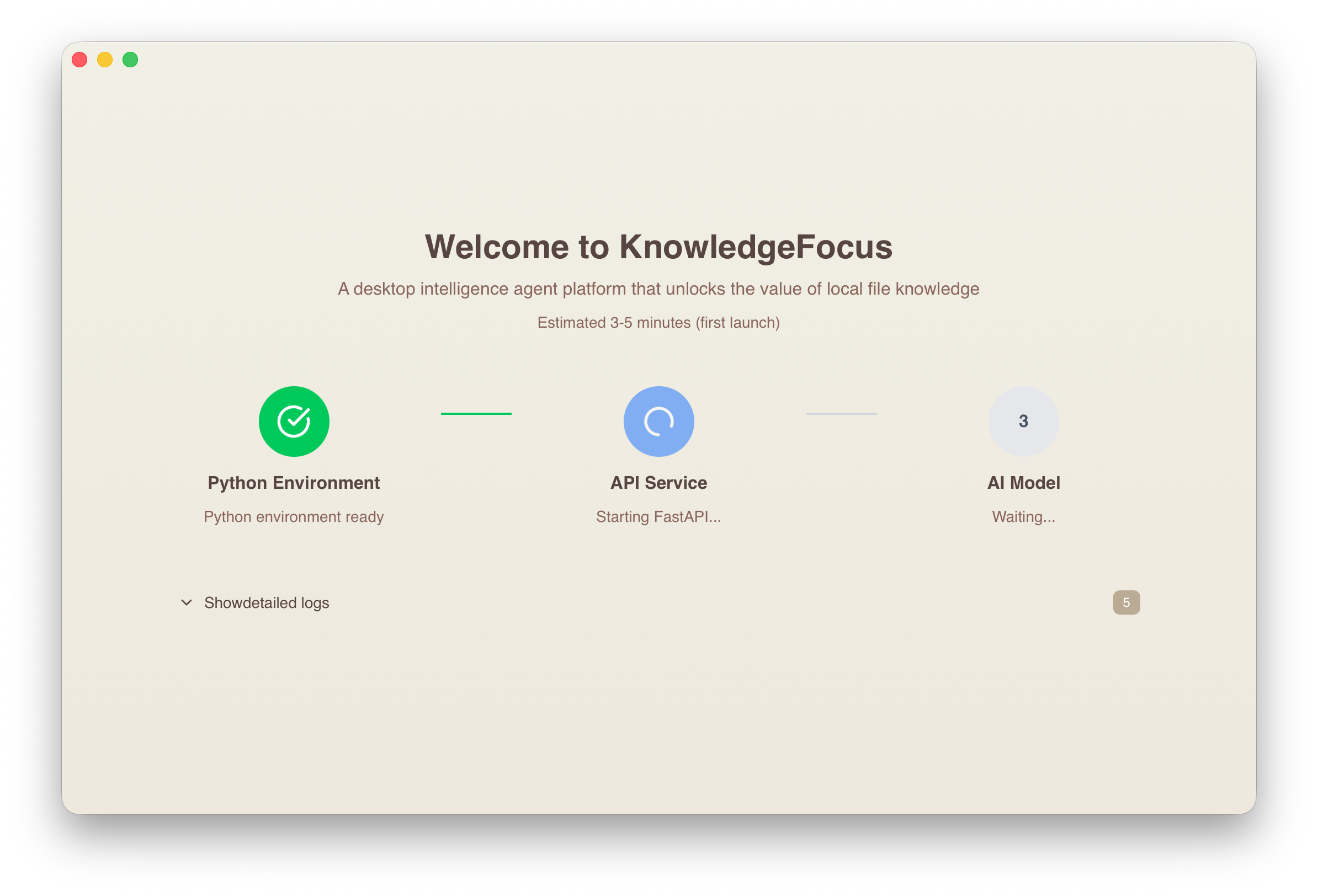
3. Download the All-in-One Model
The "all-in-one" model can tag files based on content, create knowledge indexes for text, images, and tables within files, recognize image content for Q&A, and remove sensitive information from knowledge fragments. It prioritizes using local computing resources for tasks it can handle, ensuring sensitive data never leaves your machine.
a) Normal Situation
- The first download takes some time. Please be patient.
- Subsequent launches will skip this step.
b) Troubleshooting
If you observe no progress or download failures in the monitoring window for an extended period, you may be unable to access huggingface.co directly. Try downloading from a mirror site using the following method:
- Open the Terminal app, copy the following command, paste it into the prompt, and press Enter to execute:
sh /Applications/KnowledgeFocus.app/Contents/Resources/api/download-model.sh
- After successful execution, completely quit KnowledgeFocus and restart it.
4. Grant "Full Disk Access" Permission
The app requires this permission to read your files, enabling it to help you search and discover files and knowledge by indexing them. Rest assured, KF will not delete or modify your file content—it only reads files.
- If the interface shows insufficient permissions, click the button to open System Settings.
- Find KnowledgeFocus in the list, or browse to
/Applications/KnowledgeFocus.appand grant permission. - After granting "Full Disk Access," you'll be prompted to click a button to restart the application. Wait a moment, and if KF doesn't start automatically, launch it manually.